CheckNumber.AI
 · 7 min read
WhatsApp Number Filter: How to Separate Registered Numbers in a Large List
A practical workflow for filtering a large phone list into WhatsApp-registered and non-registered segments, from cleaning to export.
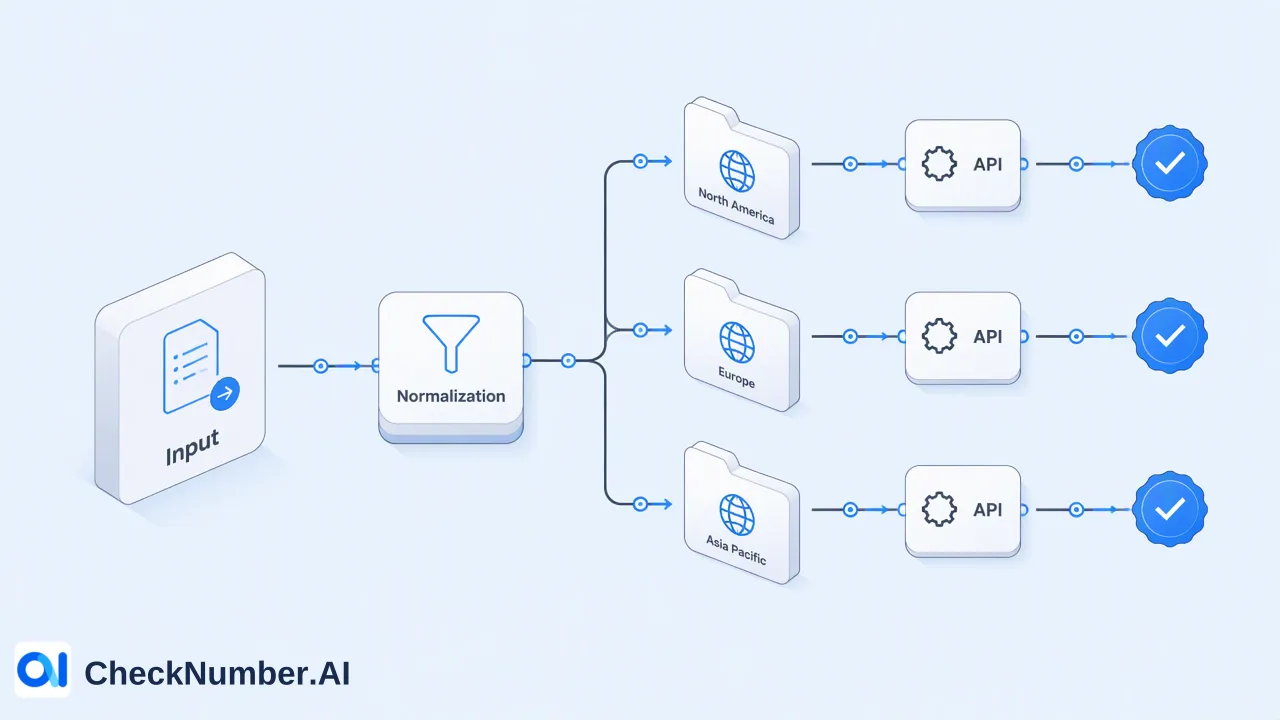
A WhatsApp number filter takes a phone list and separates the numbers registered with WhatsApp at check time from the numbers that are not. For a large list, the reliable route is to clean and normalize the numbers first, split them into one file per country, run a bulk WhatsApp registration check, and then divide the export into segments for WhatsApp and for other channels. The filter tells a team where WhatsApp is a reachable channel; it does not tell the team whether a person agreed to receive messages.
What teams mean by a WhatsApp number filter
Search results for “WhatsApp number filter” are dominated by three kinds of tools: cloud scraping actors, Chrome extensions, and paid desktop programs. Many of them ask the user to scan a QR code and log in to WhatsApp Web, then feed the list through that personal session.
In practice, a WhatsApp number filter answers one narrow question for each row: is this number registered with WhatsApp right now? Teams ask that question for a few recurring reasons:
- Channel planning. Before a campaign, marketing teams want to know how much of a consented list can be served on WhatsApp and how much needs SMS, email, or calls.
- CRM hygiene. Contact-data teams want a dated registration field next to each phone number so channel choices are based on evidence rather than assumption.
- Import decisions. Operations teams want to avoid loading a whole list into a WhatsApp sending tool when only part of it is registered.
A bulk checking service handles this as a file or API job instead of a browser session. The WhatsApp Number Checker on CheckNumber.AI checks whether phone numbers are registered with WhatsApp, and results can be exported for review and segmentation.
Step 1: Normalize the list before running the WhatsApp number filter
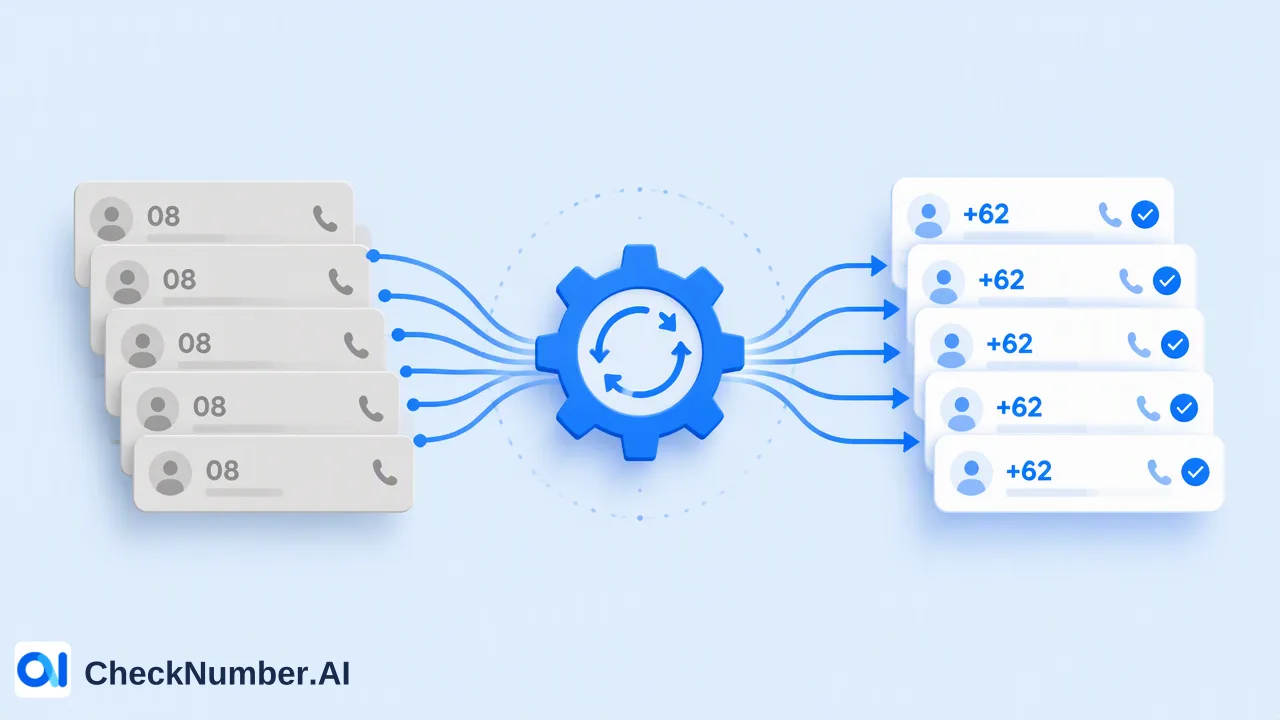
Most bad filter results start with bad input. WhatsApp itself expects numbers in full international format: the country code followed by the national number, with no trunk prefix such as a leading 0. The international standard behind that format is ITU-T E.164.
Common problems in exported lists include:
| Problem in the source list | Example pattern | Fix before checking |
|---|---|---|
| Local format with trunk 0 | 07xx xxx xxx | Drop the 0 and add the country code |
| Missing country code | 9-digit national number only | Add the correct country code for that row |
| Duplicates from merged sources | Same number in two CRM exports | Keep one copy and record both sources |
| Formatting characters | Spaces, dashes, brackets, “tel:“ | Strip to digits (plus sign optional) |
| Mixed countries in one column | UK and Brazil numbers together | Split by country (see Step 2) |
The free dashboard Toolbox includes a Number Cleaner that normalizes phone numbers to E.164 and removes duplicates and invalid entries before a paid check. Running it first means the registration check is spent only on numbers that can actually be evaluated, and the rows it removes become a separate review queue instead of silent losses.
Step 2: Split the file by country and upload it
Phone-list uploads use one country per file and one number per line with the country code; the plus sign is optional. Bulk workflows support CSV or TXT uploads, and supported products are also available through the REST API for teams that want to run the same check from their own systems.
A simple preparation routine:
- Group the cleaned list by country code.
- Save one CSV or TXT file per country, one number per line.
- Name each file with the country, the source and the date, for example
br_webinar-leads_2026-10-19.csv, so the export can be traced later. - Confirm the country is available in the selected product’s current country selector. Phone-number products do not cover China mainland, and Hong Kong, Macau and Taiwan are unsupported for phone-number products other than LINE.
- Upload the file and select the WhatsApp product that fits the job.
For developers, the API documentation describes the supported requests and the current usage limits; check it rather than assuming a fixed rate.
Step 3: Read the export and build segments
After the check, the export carries a WhatsApp registration result for each number. Treat it as a platform-specific reachability signal at the time of the check. A practical way to turn it into segments:
| Segment | What the row shows | Suggested next action |
|---|---|---|
| WhatsApp-registered, opt-in on file | Registered at check time, consent recorded | Eligible for a WhatsApp send |
| WhatsApp-registered, no opt-in | Registered at check time, no consent | Keep in consented channels only; consider an opt-in request through a permitted channel |
| Not registered | No WhatsApp registration at check time | Route to SMS, email or call workflows where consent exists |
| Removed during cleaning | Invalid or duplicate before the check | Send to data review; do not guess a country code |
Store the check date in the CRM beside the result. Registration changes as people switch numbers or apps, so a dated field shows how old the evidence is when the next campaign is planned.
Choosing the right WhatsApp product for the filter
Different products answer different questions, and a capability should not be assumed from one product to another:
- WhatsApp Number Checker checks whether phone numbers are registered with WhatsApp. It is the default fit for a registered / not-registered filter.
- WhatsApp Advanced Checker checks current WhatsApp registration for uploaded lists using a stricter real-time detection process, for teams that want the stricter check on a specific list.
- WhatsApp Days Checker adds available activity or last-seen context and available business-account context. Activity-day values mean days since last online, not account age. Use it only when a team needs to prioritize within the registered segment.
If the job is only to separate registered from non-registered numbers, start with the plain registration product and add activity context later for the segment that needs it.
Common mistakes when filtering WhatsApp numbers
- Treating “registered” as permission. WhatsApp’s own policy requires businesses to have the person’s number and an opt-in that names the business before messaging them. A registration result does not replace that record.
- Deleting non-registered rows. A number without WhatsApp may still be correct for SMS, calls or other platforms. Re-route it instead of removing it.
- Running a personal account through a filter extension. Session-based tools use the operator’s own WhatsApp login; an upload or API job keeps the check separate from any personal account.
- Mixing countries in one upload. One-country files keep normalization predictable and make the export easier to audit.
- Reusing an old result. A filter run months ago is weak evidence for a new campaign; re-check before major sends.
FAQ
How can teams filter WhatsApp numbers without logging in to WhatsApp Web?
Teams can upload the cleaned list as CSV or TXT files, one country per file, to a bulk checking service, or call the REST API for supported products. The check runs as a file or API job, so no personal WhatsApp session or QR-code login is involved.
Should non-registered numbers be removed from the CRM?
Usually not. A non-registered result only says WhatsApp is not a reachable channel for that number at check time. The number may still be valid for SMS, calls or email-linked records, so tagging and re-routing is safer than deleting.
How often should a WhatsApp number filter be re-run?
Re-run it before each major campaign or list import rather than on a fixed calendar, and store the check date with the result so the age of the evidence is always visible.
Does a registered result mean a business can message the contact?
No. Messaging on WhatsApp requires an opt-in that clearly names the business. The registration field and the consent field should be kept separate, and only rows that satisfy both belong in a WhatsApp send.